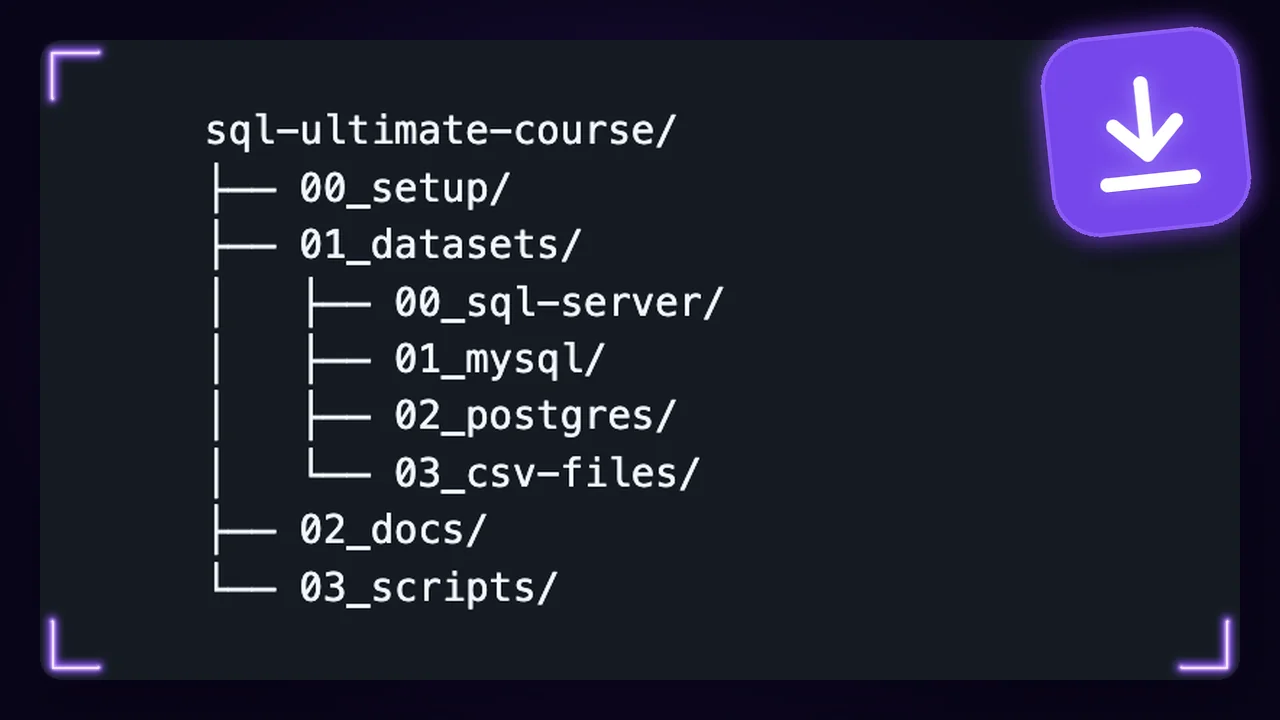


What is in the download?
Everything the lessons use. The SQL script of every lesson and the slides of each chapter as PDF. The two course databases are ready for SQL Server, MySQL and PostgreSQL, and also as CSV files.
I use Google Analytics cookies to count visits and see which pages help you. The data may go to Google in the USA. It only runs if you allow it, and you can change this any time in Cookie settings.
1,700+ stars
Windows and Mac
1,000+ stars
8,500+ members
· 64,800+ students
Open the SQL Server downloads page, scroll to the Express card and click Download now.
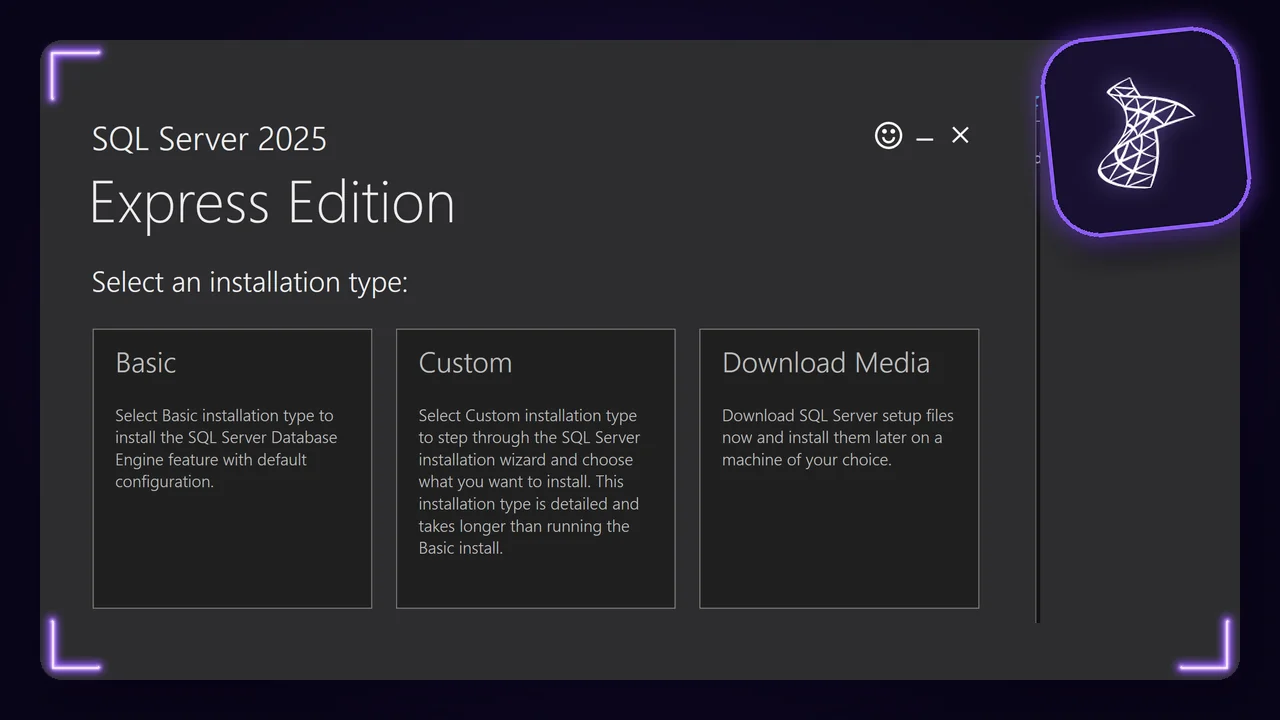
Run the downloaded file, choose Basic, accept the licence and click Install.
The last screen shows your server name, localhost\SQLEXPRESS. Keep it for step 3.
Download SQL Server Management Studio (SSMS) and install it with the default options. It may offer extra components: you need none of them.
At the first start, SSMS asks you to sign in. Click Skip and add accounts later, under the buttons.
In the Connect window, fill in:
localhost\SQLEXPRESSClick Connect. Your server appears on the left, in the Object Explorer.
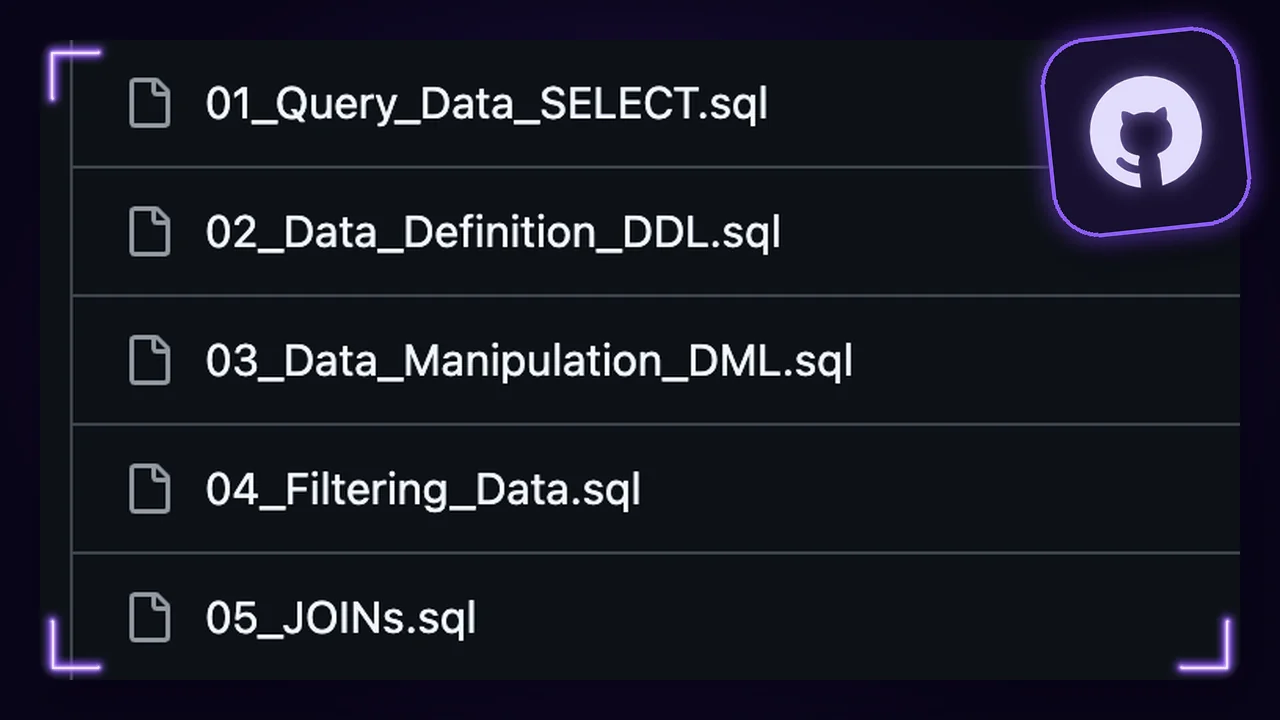
In SSMS, click File > Open > File and pick 01_datasets/ from the course files. Click Execute, or press F5.
Do the same with init-sqlserver-salesdb.sql. Refresh the Databases folder: MyDatabase and SalesDB are there.
Use only the scripts in 00_sql-server/. The MySQL and PostgreSQL scripts do not run in SSMS.
MyDatabase.bak and SalesDB.bak into the Backup folder of your SQL Server. On SQL Server 2022, the path has MSSQL16 instead of MSSQL17.C:\Program Files\Microsoft SQL Server\MSSQL17.SQLEXPRESS\MSSQL\Backup
Install Docker Desktop for the chip of your Mac. Apple menu > About This Mac shows which one. Start it and leave it running.
SQL Server ships for Intel chips only. On an Apple chip, open the Docker Desktop settings, General, and set:
Install Visual Studio Code, then its extension SQL Server (mssql) by Microsoft. SSMS is Windows only: this is where you write your queries on a Mac.
In the course files, open 00_setup/ and double-click start.command.
Give it a few minutes. The first start downloads SQL Server and creates MyDatabase and SalesDB. Next time, double-click the same file again.
macOS blocks it? Open System Settings > Privacy & Security, scroll down, click Open Anyway, then double-click again. Only the first time.
In Visual Studio Code, open the SQL Server extension on the left and add a connection:
localhost, Port: 1433sa, Password: SqlServer!2026Click Connect. Your server appears in the Connections view, with MyDatabase and SalesDB under Databases.
This command starts an empty SQL Server 2022. Choose your own password: at least 8 characters with upper case, lower case, a number and a symbol.
docker run -e 'ACCEPT_EULA=Y' \ -e 'MSSQL_SA_PASSWORD=YourStrong!Passw0rd' \ -p 1433:1433 --name sql \ --platform linux/amd64 \ -d mcr.microsoft.com/mssql/server:2022-latest
Connect with your password, then run init-sqlserver-mydatabase.sql and init-sqlserver-salesdb.sql from Visual Studio Code. Microsoft's own guide: SQL Server in a Docker container.
SQL Server Express runs on the ARM version of Windows 11, even though Microsoft does not list it as supported.
01_datasets/01_mysql/init-mysql-mydatabase.sql and run it with the lightning icon.init-mysql-salesdb.sql.postgres and open 01_datasets/02_postgres/init-postgres-mydatabase.sql . Select its DROP DATABASE line and run it. Then do the same with its CREATE DATABASE line.MyDatabase, and run the rest of the script.init-postgres-salesdb.sql. Its database is salesdb.The table names differ from the videos: Sales.OrdersArchive is orders_archive in MySQL and sales.ordersarchive in PostgreSQL.
Error 26, "Error Locating Server/Instance Specified"
SQL Server is not running, or the name is wrong. Open Services and start SQL Server (SQLEXPRESS). With the Developer edition, the server name is just localhost.
"The certificate chain was issued by an authority that is not trusted"
Tick Trust Server Certificate when you connect.
The installer stops at "Wait on the Database Engine recovery handle failed"
On Windows 11 with a fast NVMe disk, SQL Server needs one registry setting first. Follow Microsoft's fix, restart Windows and install again.
SQL Server 2025 setup stops at the rules check
Install SQL Server 2022 instead: the free Developer edition runs the whole course. Its server name is just localhost.
Msg 262, "CREATE DATABASE permission denied"
Log in with the Windows account that installed SQL Server, or ask an administrator to add your login to the sysadmin role.
Msg 911, or many syntax errors with backticks
You ran the MySQL or PostgreSQL script. Use the scripts in 01_datasets/.
The restore window does not show the .bak file, or "Access is denied"
SQL Server cannot read Downloads. Copy the file into the Backup folder first.
Msg 3169, the backup "is incompatible with this server"
Your SQL Server is older than 2022. Run the scripts instead, or install SQL Server 2022 or newer.
Msg 195, "'DATETRUNC' is not a recognized built-in function name"
Install SQL Server 2022 or newer. The course uses functions from 2022.
"Cannot connect to the Docker daemon"
Docker Desktop is not running. Start it, wait for the whale icon, then try again.
"SQL Server did not answer" from start.command
Most often Rosetta is off: turn it on in the Docker Desktop settings, General. Started a SQL Server by hand before? Stop it in Docker Desktop.
Docker says "port is already allocated"
Another SQL Server already uses port 1433, often one you started by hand. Stop it in Docker Desktop, then try again.
Everything the lessons use. The SQL script of every lesson and the slides of each chapter as PDF. The two course databases are ready for SQL Server, MySQL and PostgreSQL, and also as CSV files.
Yes. Use the files to learn and to build your own projects.
SQL Server Express and SSMS, both free. The setup guide on this page shows every step. The course databases also come ready for MySQL and PostgreSQL.
Yes. The setup guide covers Windows and Mac. On a Mac, SQL Server starts in Docker with one click.
No. The course starts from zero, and the scripts follow the lessons in order.
Not with the files. The Ultimate SQL Mastery in the Academy comes with a certificate of completion, your progress and subtitles in 8 languages.

The full courses with sketches, projects and a certificate. One payment per course, no subscription.
Join academy
Join 214,000+ curious readers learning to think like data experts. Get weekly lessons, stories, and frameworks from real projects.